How to sell NFTs in AtomicHub Market on EOS Blockchain

Please exercise caution. EOS Support does not assume responsibility for any potential problems, damages, or losses that may occur as a result of utilizing the services provided by the project(s) discussed in this article.
NFTs (Non-Fungible Tokens) have revolutionized how creators and collectors interact with digital art, virtual objects, and other unique assets in the digital world. The EOS network has been an essential hub for creating and trading NFTs due to its scalability, low transaction costs, and high speed. AtomicHub is a leading EOS platform that allows users to buy, sell, and explore NFTs simply and efficiently. This guide will teach us how to sell NFTs on the EOS network through AtomicHub.
What is AtomicHub?
AtomicHub is a platform deployed on the EOS blockchain that acts as a decentralized marketplace for NFTs. It lets users create, buy, sell, and transfer NFTs quickly and securely. The platform is extremely popular among collectors and digital content creators, as it offers a user-friendly interface and powerful features for managing digital assets.
A new account on AtomicHub
To get started, you must have an AtomicHub account. If you already have an EOS account, you can use the same credentials to log in to AtomicHub. If you don't have an EOS account, you must create one on an EOS-compatible wallet and deposit some EOS tokens to pay transaction fees. You can follow our step-by-step guide on how to create an EOS account.
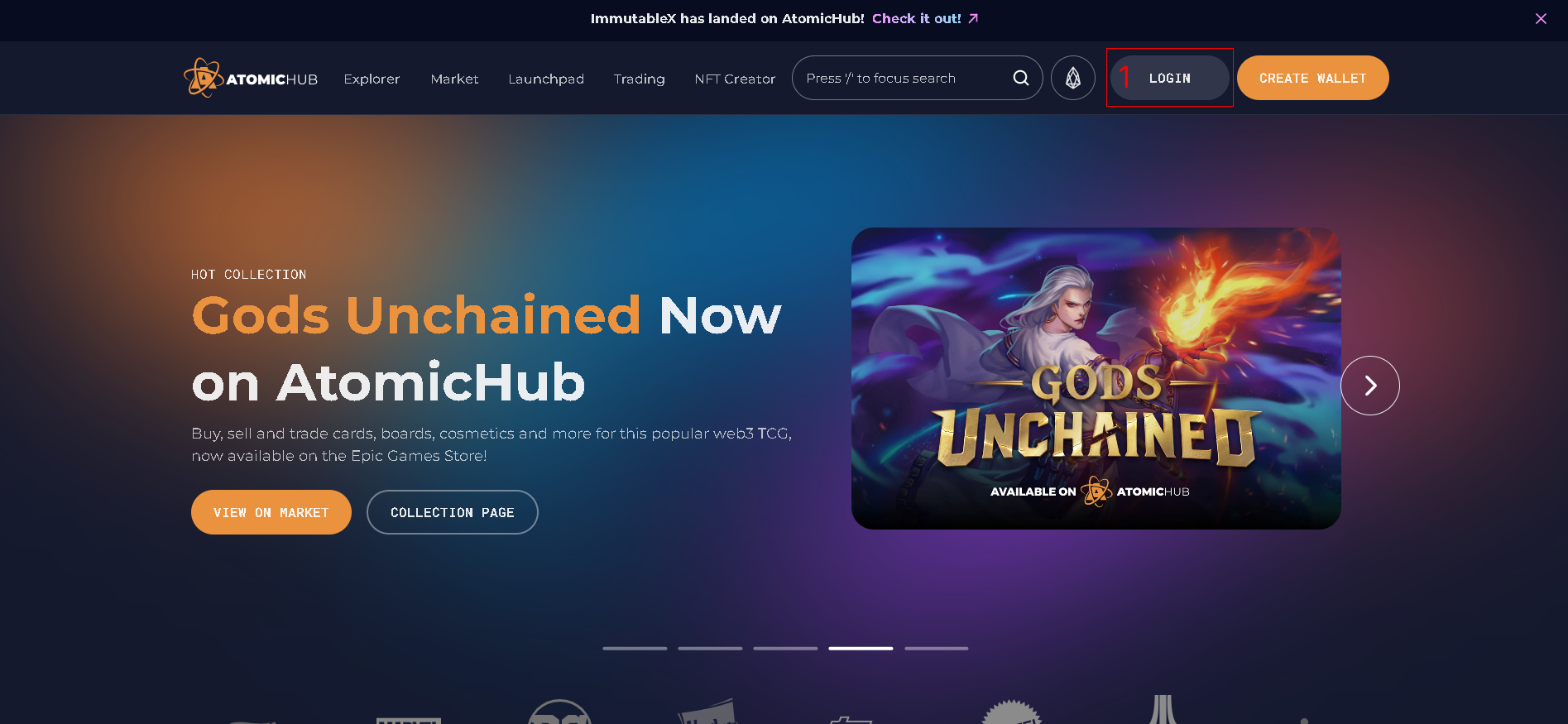
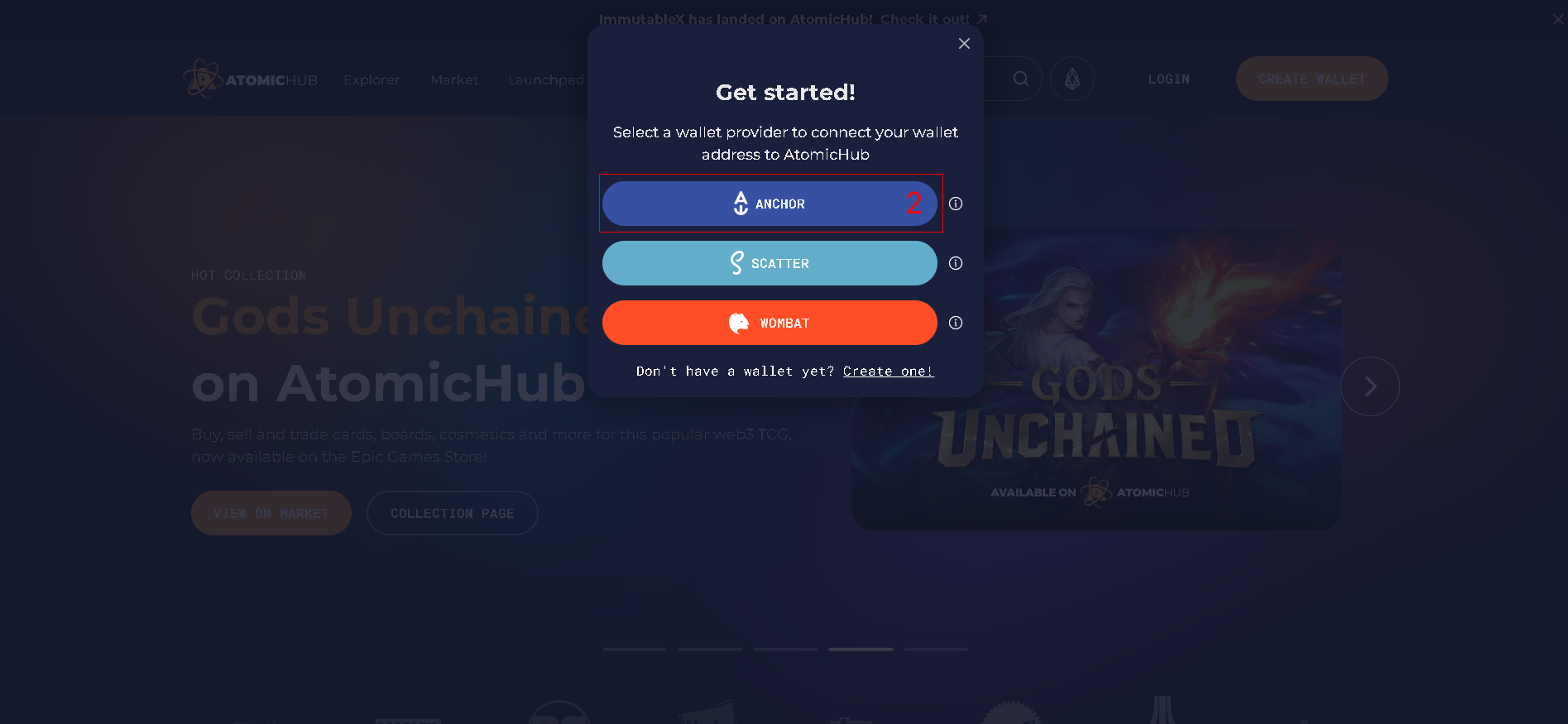
Note:
You must verify account ownership if this is your first time using AtomicHub. This is a one-time verification.
Before listing your NFT on AtomicHub, ensure your NFT file complies with the platform's standards and requirements. Ensure that the NFT is stored in a smart contract in EOS and that the token complies with AtomicHub's NFT standard. You should have NFT in high-quality images and relevant metadata ready so buyers can know your NFT's details.
Access to the AtomicHub Marketplace
Once you have prepared your NFT, log in to AtomicHub and navigate to the inventory. There you will find the option to list your NFTs. You can select LIST ON MARKET and complete the necessary details to list your NFT for sale.
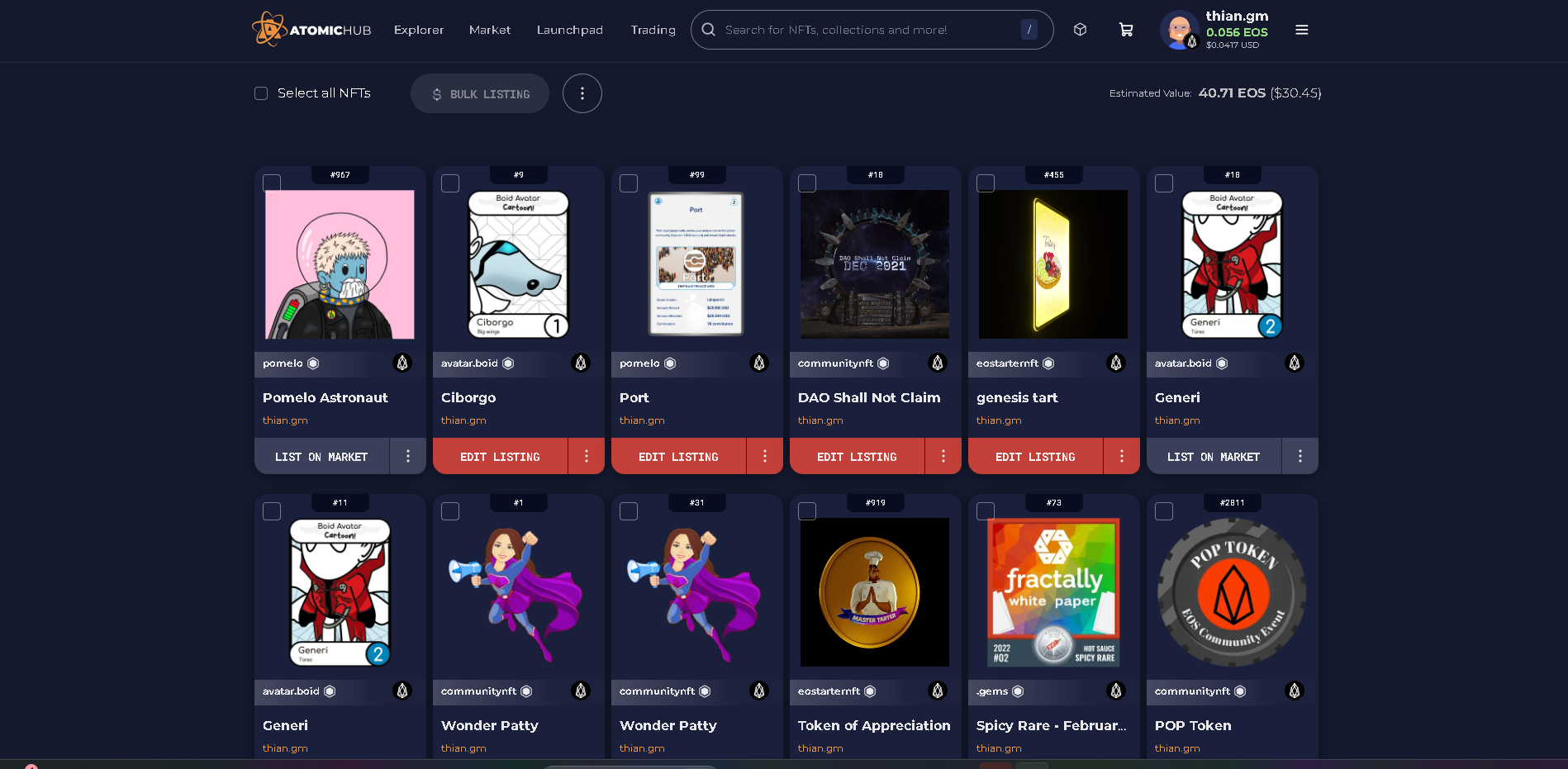
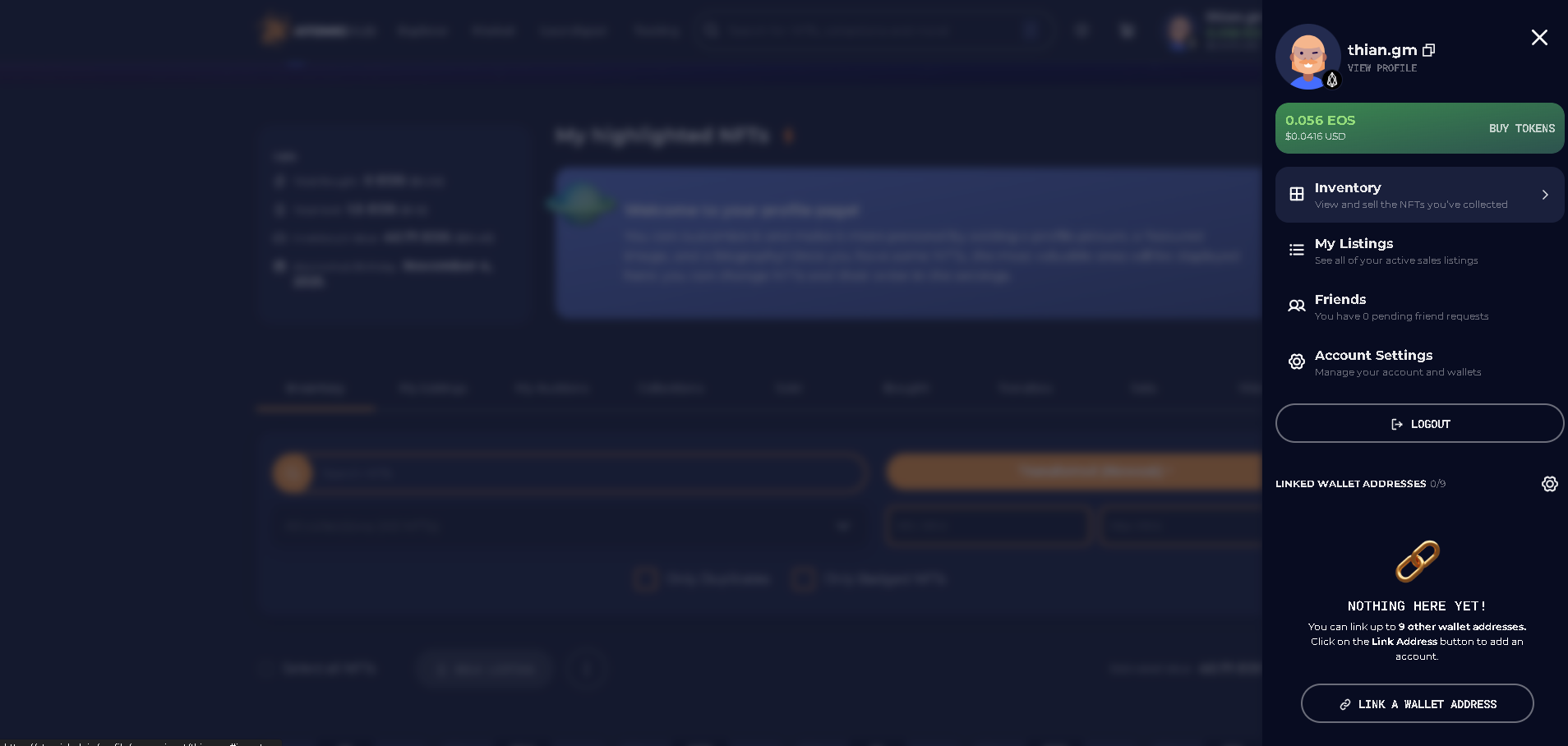
1. Click on your account name or profile icon.
2. Go to inventory.
3. Select the NFT you want to list on the market for sale.
4. Click on LIST ON MARKET.
Note:
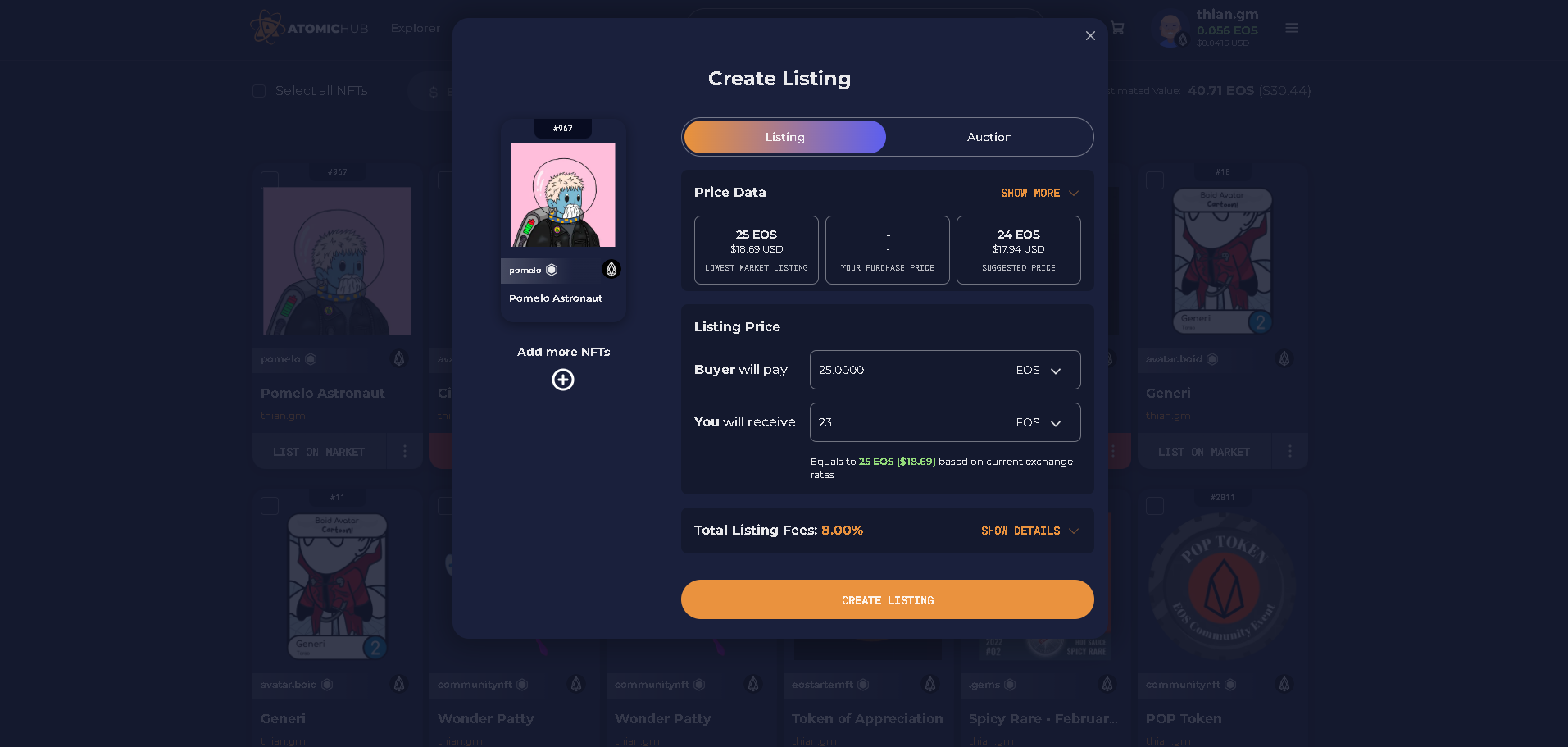
A window will appear in which you must complete the details to list your NFT for sale.
Establishing the price of your NFT
Pricing is a crucial part of the NFT sales process. Researching the market and determining a fair price for your NFT is essential. Consider the rarity, demand, and content of your NFT when setting the price. You can set the price in EOS, AtomicHub has tools to view market data on the NFT collection as the lowest market price or suggested price.
Listing your NFT
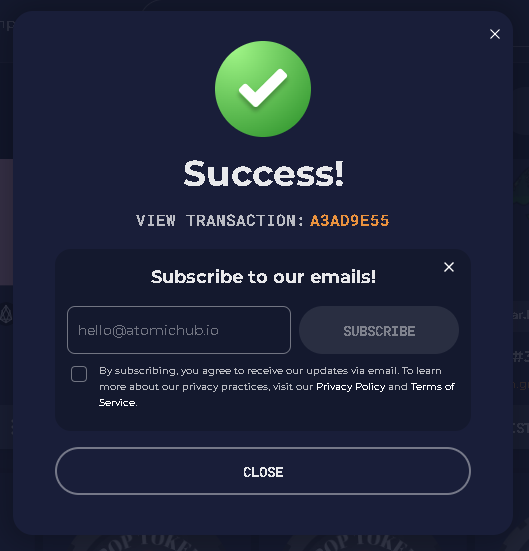
Once you have set up all the details of your NFT and are satisfied with the price and terms, select CREATE LISTING to put your NFT on the market. The transaction will be recorded on the EOS blockchain, and your NFT will be available for purchase.
Note:
To view the status of the token transfer, click the hash link next to VIEW TRANSACTION.
Unlisting your NFT
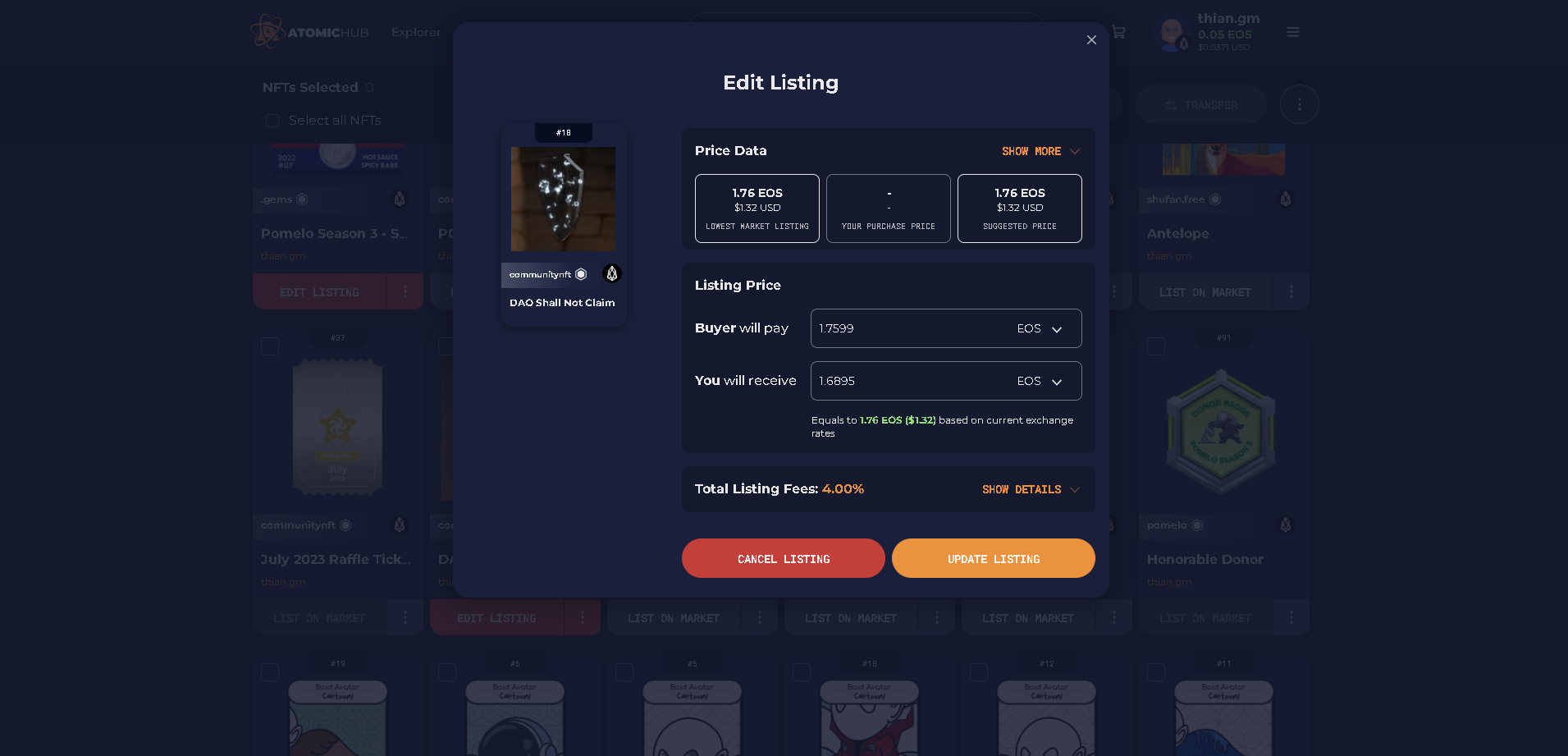
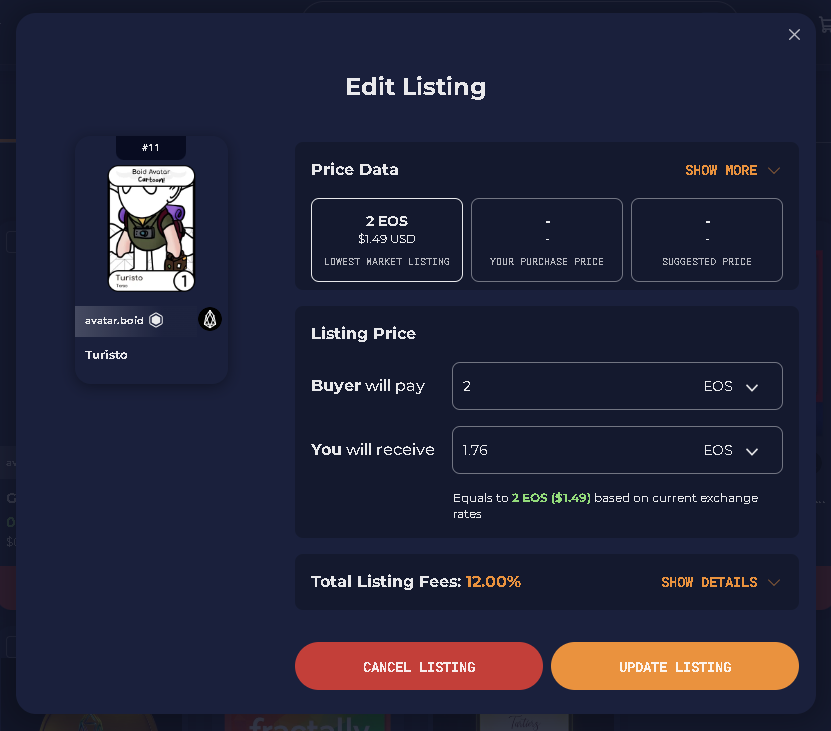
AtomicHub allows you to cancel the sale of the NFT if you change your mind and want to keep your digital asset. To cancel the sale of an NFT, follow the steps below.
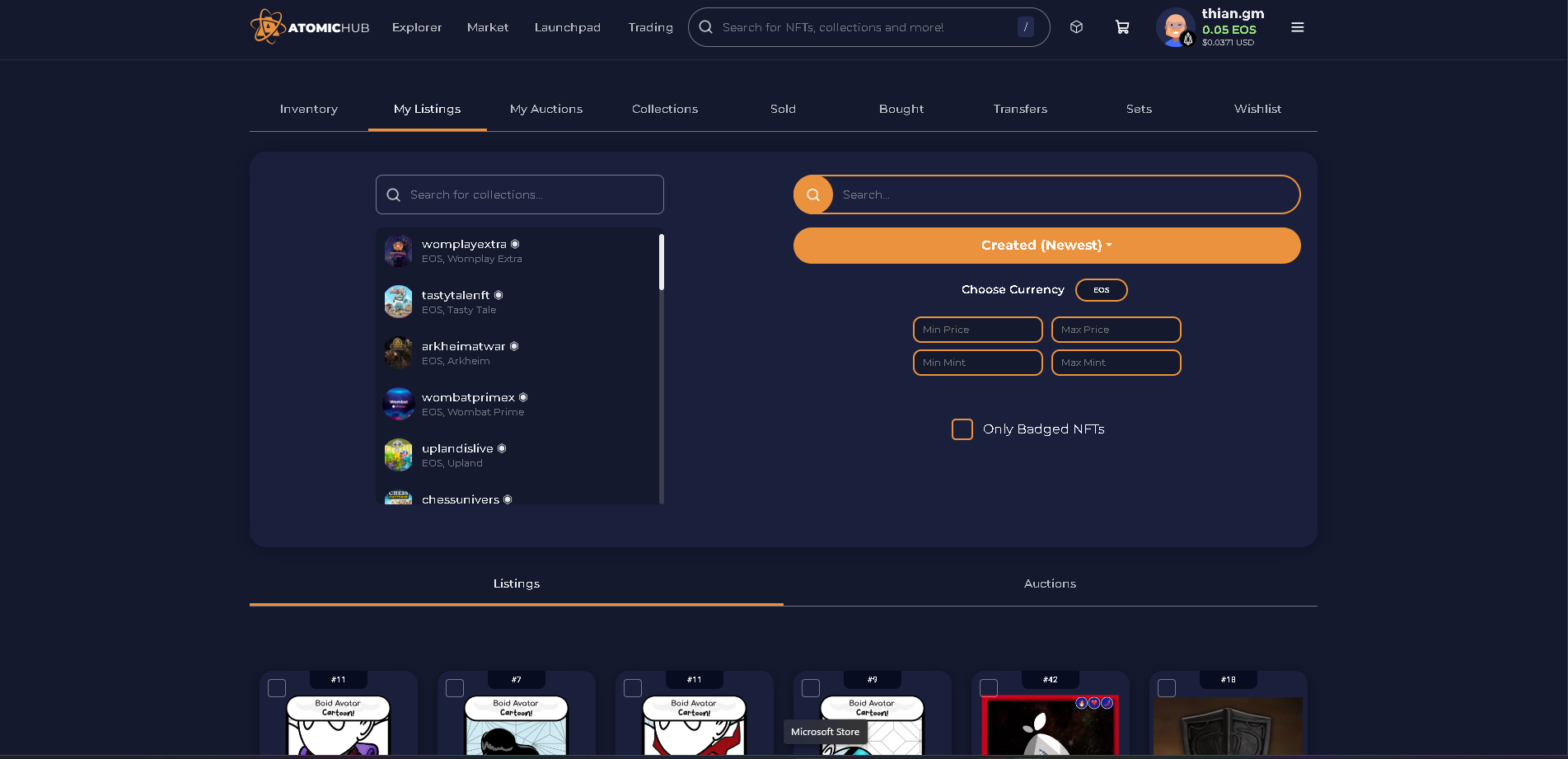
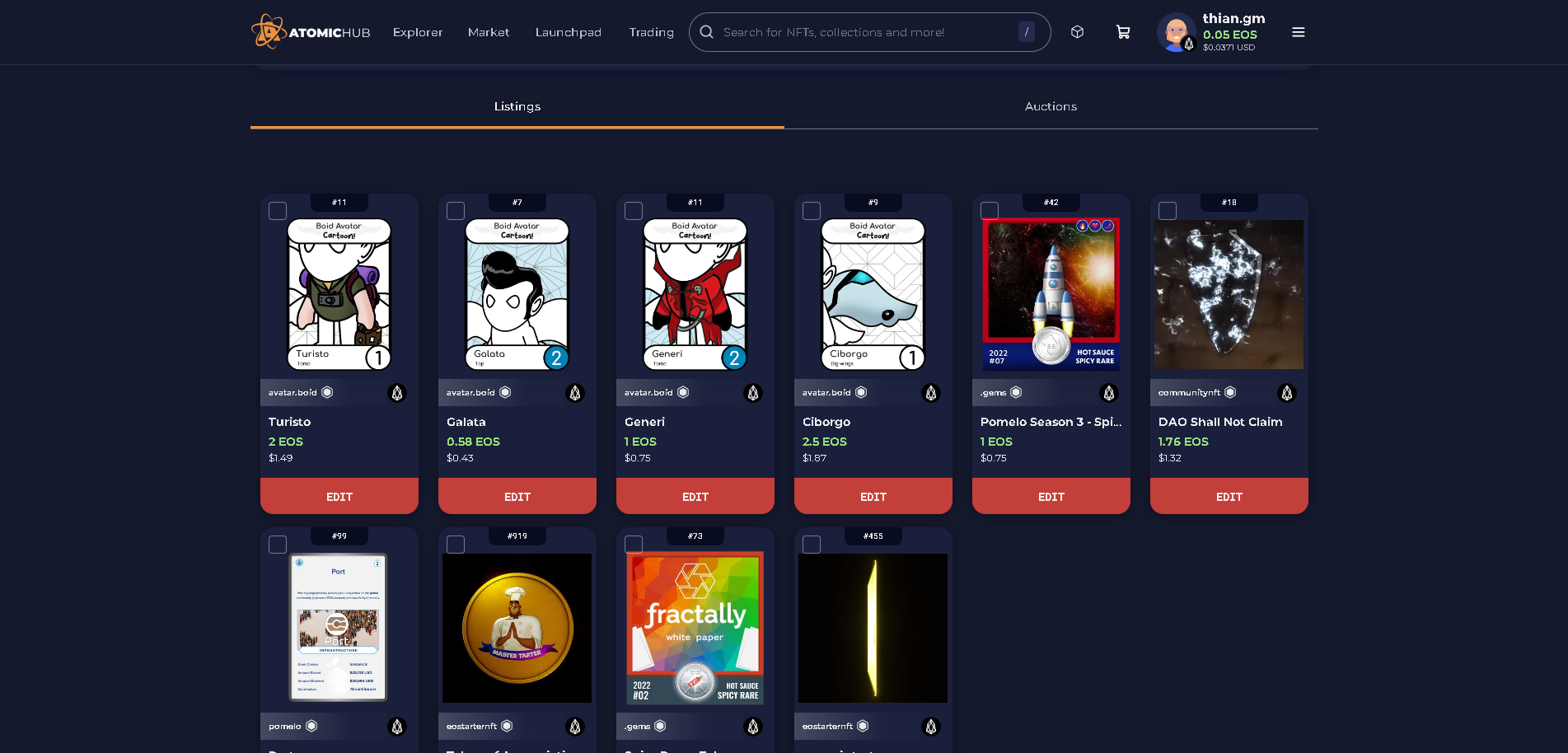
1. Go to My listings.
2. Select the NFT you want to unlist on the market sale.
3. Click on EDIT.
4. Select CANCEL LISTING and sign the transfer to confirm.
Note:
To view the status of the token transfer, click the hash link next to VIEW TRANSACTION.
Outlook
Selling NFTs on the EOS network through AtomicHub offers an exciting opportunity for content creators and collectors to capitalize on the popularity of unique digital assets. By following this guide, you'll be well on your way to taking advantage of AtomicHub and successfully selling your NFTs on the EOS network.
Good luck on your journey into the world of NFTs!
Author: Cristhian Rincon
Editor: Randall Roland
Translator: -
Source & References:
Image credits:
Screenshots from AtomicHub website
Last updated:
Was this article helpful?
Have a specific question about this article?