How to Import a Private Key into the Blocksfinity Authenticator App
A step-by-step guide to installing Blocksfinity Authenticator, creating your local vault, importing a Vaulta private key, and using it to log in to Blocksfinity.com
The Blocksfinity Authenticator securely stores your blockchain keys and allows you to approve logins and blockchain transactions without entering your private key into websites each time.
The Authenticator uses a local vault, protected by a master password. A single vault can contain the keys for one or more Vaulta blockchain accounts.
Step 1 — Open the Blocksfinity Authenticator website
Go to:
If you do not have the Blocksfinity Authenticator installed yet, click “Get the app” in the upper-left corner or open https://www.blocksfinity.com/download
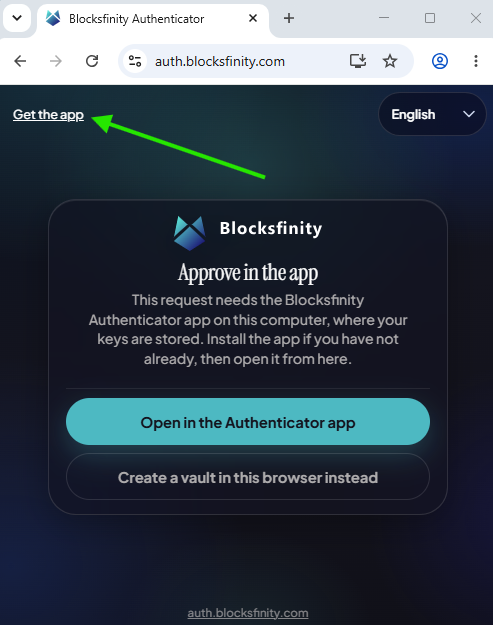
Step 2 — Download and install Blocksfinity Authenticator
The download window shows the currently available versions of the Blocksfinity Authenticator for supported operating systems.
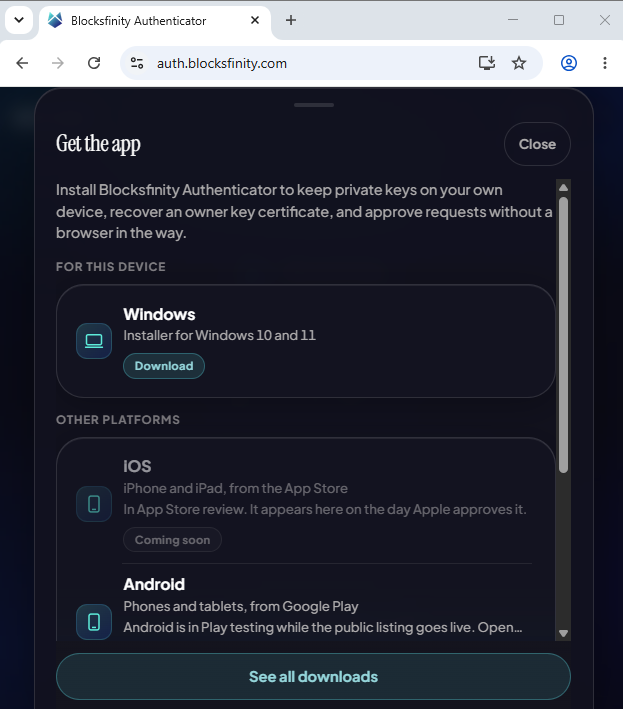
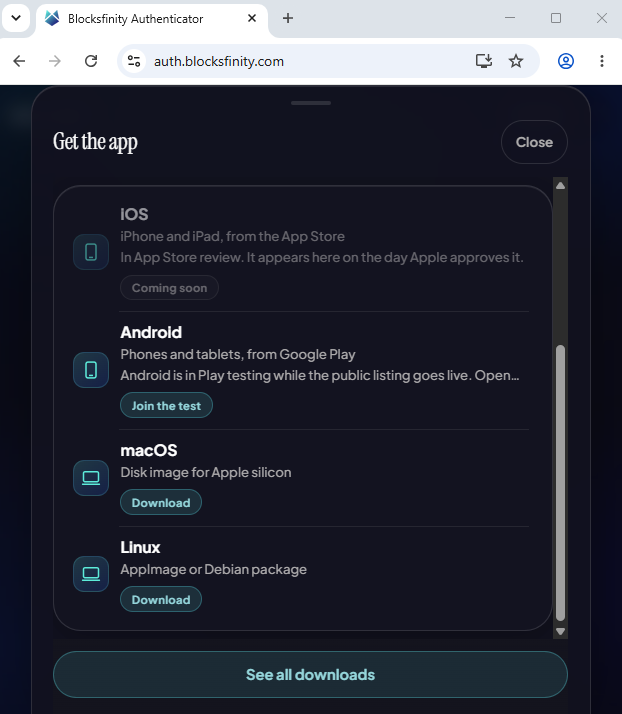
Select the version for your device and follow the normal installation process.
Click “Download”, run the downloaded installer, and complete the installation.
Once installation is complete, open the Blocksfinity Authenticator.
Step 3 — Create your vault and master password
When you open Blocksfinity Authenticator for the first time, you will be asked to create a vault.
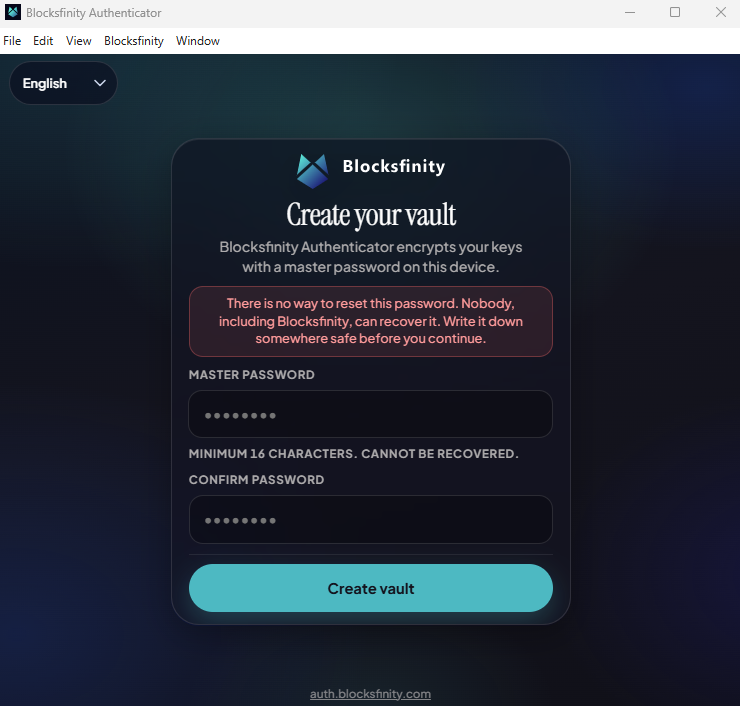
The vault is the encrypted storage area on your device where Blocksfinity Authenticator keeps your imported private keys. One vault can hold keys associated with multiple Vaulta blockchain accounts.
Create a strong master password of at least 16 characters, using a mix of uppercase and lowercase letters, numbers, and special characters. Enter it again under Confirm Password, then click “Create vault.”
This password protects access to the private keys stored inside your Authenticator.
Important: The master password cannot be reset or recovered. Blocksfinity does not know your password and cannot restore it for you. Store it securely before continuing.
Your master password is different from your blockchain private key. The master password unlocks the Authenticator vault on your device; the private key is the cryptographic credential used to authorize actions for your blockchain account.
Recommended security setting — Auto-lock
After you setup your master password, we strongly recommend adjusting the Authenticator's security settings.
In the left sidebar, click Settings, expand the Security section, and under AUTO-LOCK, select 1 minute from the dropdown menu, as shown below.
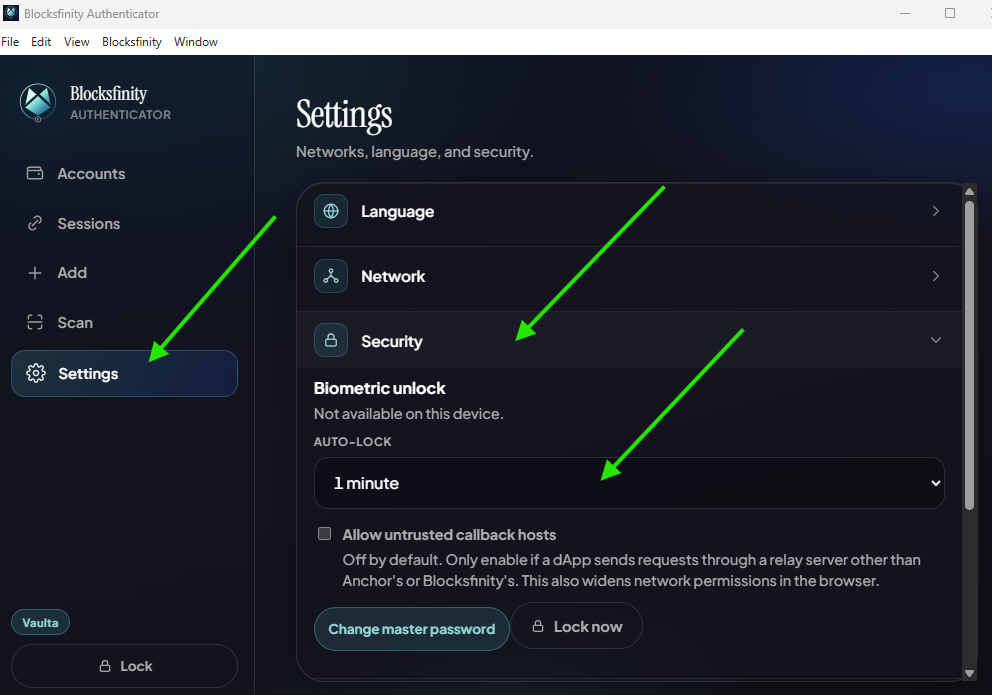
Why is a short Auto-lock period recommended?
Your Authenticator stores sensitive private keys that control access to your blockchain accounts. Setting Auto-lock to 1 minute helps minimize the time your vault remains unlocked and reduces the risk of unauthorized access.
This is particularly important if you leave your computer unattended, someone gains remote access to your computer, or malicious software attempts to interact with an already-unlocked application.
Important: Auto-lock provides an additional layer of security, but it cannot guarantee protection against malware or a compromised computer. Malicious software may still capture your master password or access sensitive information while the vault is unlocked. Always keep your device secure and avoid using your Authenticator on a computer you suspect is compromised.
Step 4 — Add a blockchain account
After creating your vault, the Accounts screen will initially show that no accounts have been added.
Click “+ Add account.”
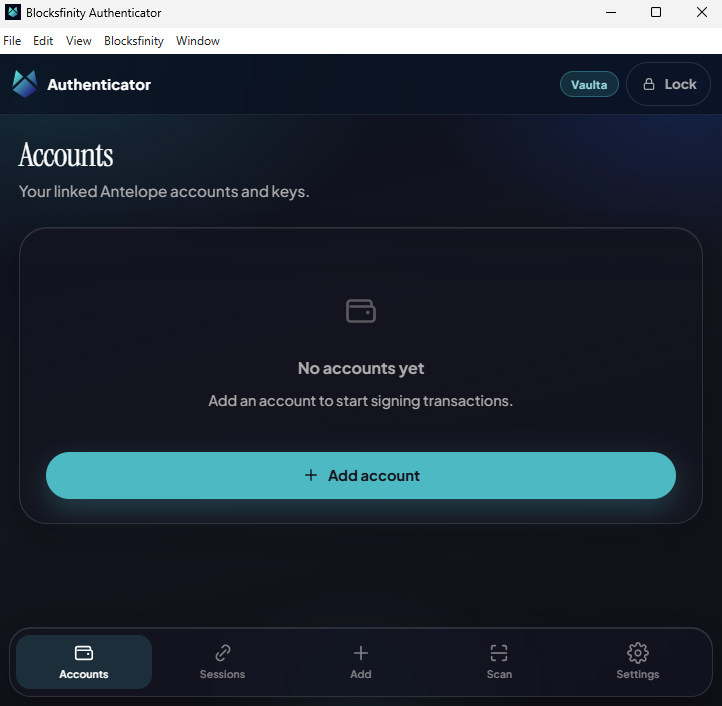
This opens the account management screen, where you can create, recover, import, or link blockchain accounts.
Step 5 — Select “Import private key”
On the Add account screen, choose:
“Import private key”
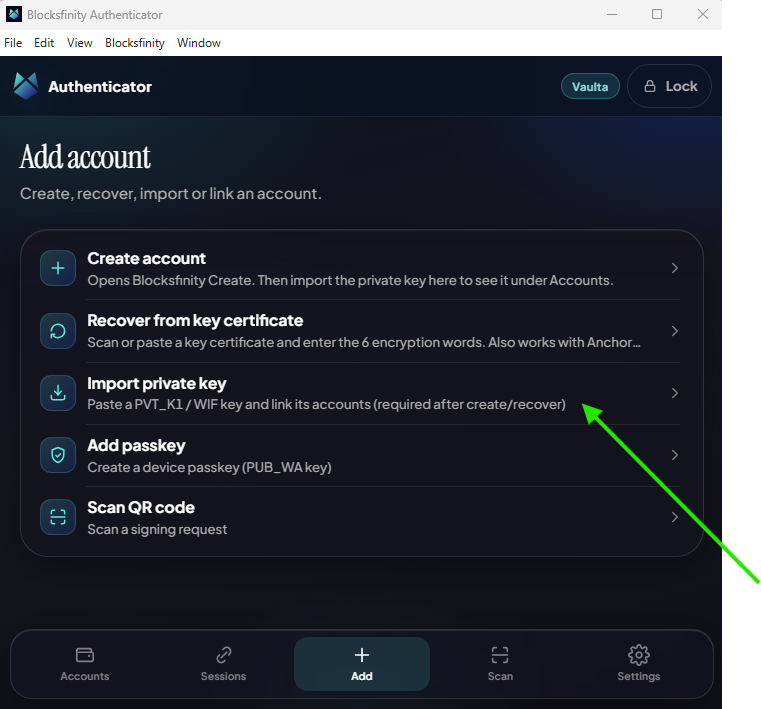
This option is used when you already have a Vaulta private key, such as the private key you securely saved while creating your account in the previous guide.
The Authenticator will use the corresponding public key to discover which Vaulta accounts and permissions are associated with that key on-chain.
Never send your private key to another person or paste it into an untrusted website.
Step 6 — Enter your private key and find your account
Make sure the selected network is Vaulta.
Paste your previously saved private key into the Private Key field.
The Authenticator stores the key encrypted inside your local vault. After entering the key, click:
“Find accounts”
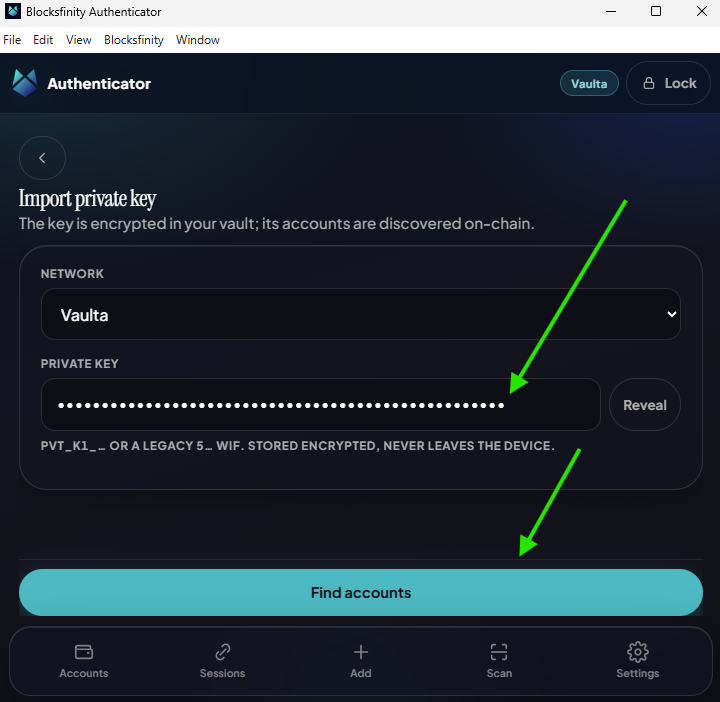
Blocksfinity Authenticator derives the corresponding public key and checks the Vaulta blockchain for accounts and permissions that currently use that key.
Note: In the future, depending on how the key is used on-chain, the same private key could potentially be associated with more than one account or permission.
Step 7 — Link the discovered account
After searching the blockchain, the Authenticator displays the account or accounts associated with the imported key.
In our example this is supportacc1h
Verify that the expected account name appears under “Accounts found.”
Select the account you want to add and click:
“Link 1 account(s)”
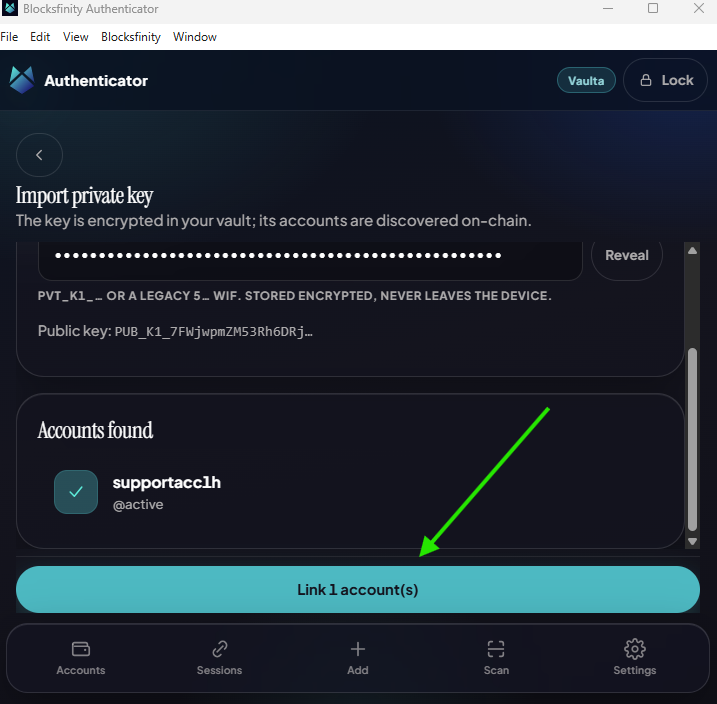
If several accounts are found, review them carefully and select only the accounts you intend to manage with this Authenticator.
When you have the same keypair for both ownerand active permission, you should see 2 accounts to chose from: YOURACC@ownerand YOURACC@active.
Select YOURACC@active. In our example this is supportacc1h@active
The blockchain account itself is not moved into the application. The Authenticator is linking the locally stored private key to the corresponding account and permission discovered on the Vaulta blockchain.
Step 8 — Verify the imported account and key
Once linked, open the account inside Blocksfinity Authenticator.
Note: If you see a red warning about creating a certificate for backup or recovery, you can ignore it for now. For now, your private key is your backup. If you forget your master password, you can create a new vault and import your private key again. Store the private key securely and make sure you do not lose it. Later, we’ll show you how to create an owner certificate, which provides an additional recovery option if you lose access to your private key.
Under “Permissions & keys,” you can see which account permission is associated with the private key stored in your Authenticator.
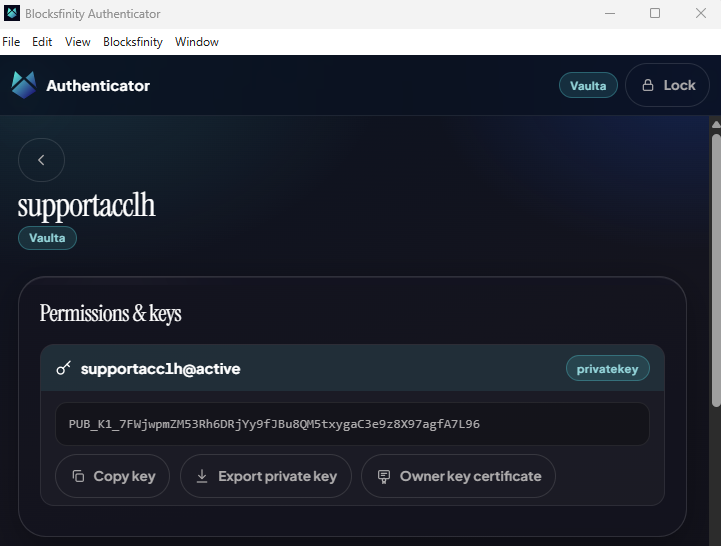
You can also review “Keys on chain.” This section shows the public keys that currently have authority over the account according to the Vaulta blockchain.
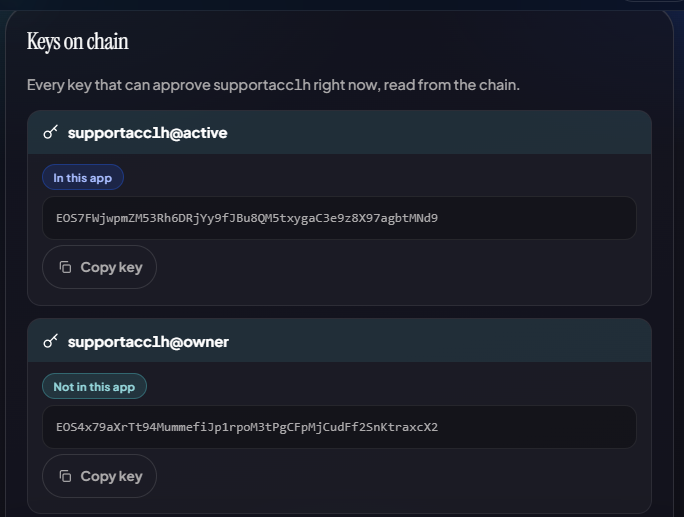
A key marked “In this app” is available in your current Authenticator vault. A key marked “Not in this app” exists on-chain but its corresponding private key has not been imported into this Authenticator.
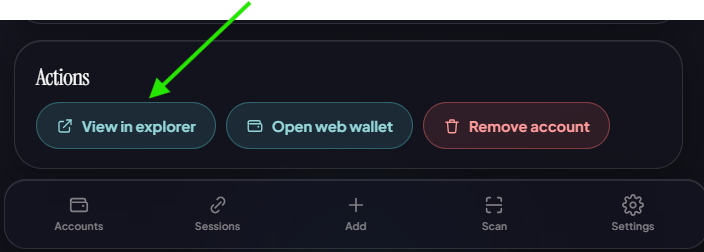
For an additional verification or to log in with your Authenticator, click “View in explorer.”
This opens the account in the Blocksfinity blockchain explorer, where you can independently review its account information, permissions, keys, resources, and transaction history or log into the explorer to perfom actions with your Vaulta account.
Important: Public keys may safely be visible on the blockchain. Your private key should never be exposed publicly.
Step 9 — Log in to Blocksfinity.com with the Authenticator
Your account is now ready to be used with websites that support Blocksfinity Authenticator.
Go to https://www.blocksfinity.com and click “Login” in the upper-right corner.
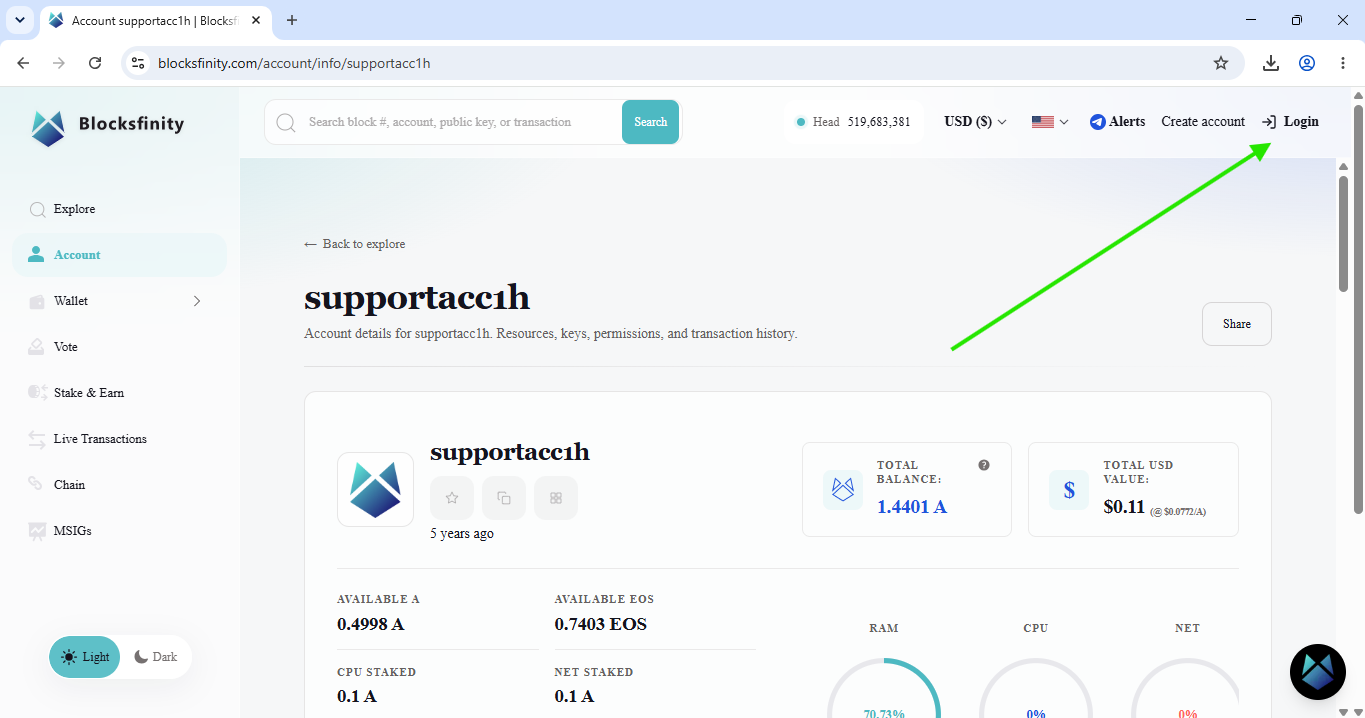
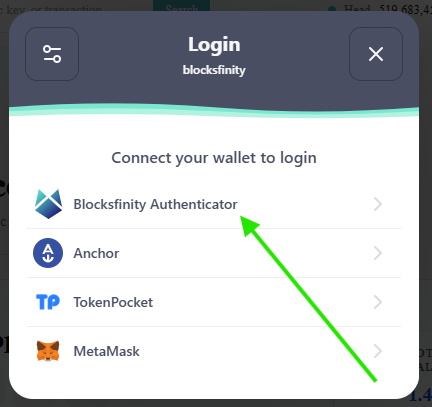
Select “Blocksfinity Authenticator” from the available login options.
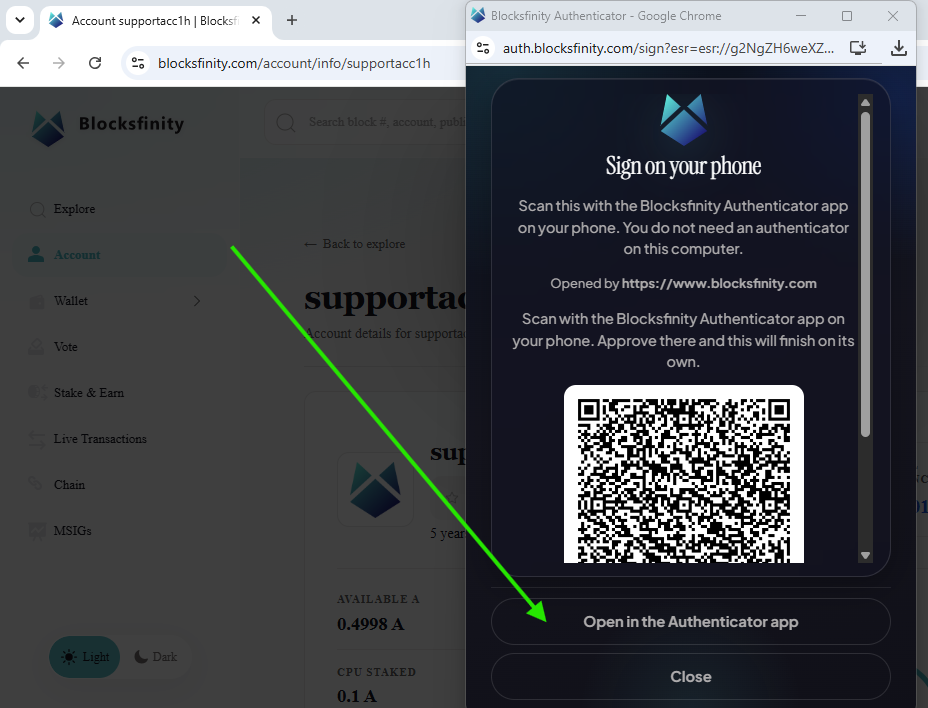
If you are using the Authenticator on the same computer, click “Open in the Authenticator app.” If you are using the Authenticator on another supported device, the login screen may provide a QR code that can be scanned instead.
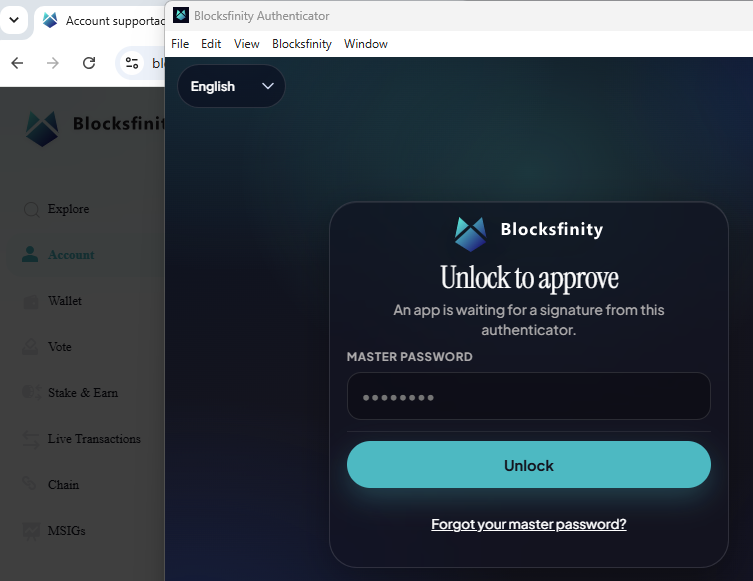
Blocksfinity Authenticator will open and ask you to unlock your vault. Enter your master password and click “Unlock.”
You will then see the login request. Before approving it, check:
The account and permission you are signing with.
The website or application requesting the login.
The type of request being authorized.
If everything is correct, enter your master password if requested and click “Approve login.”
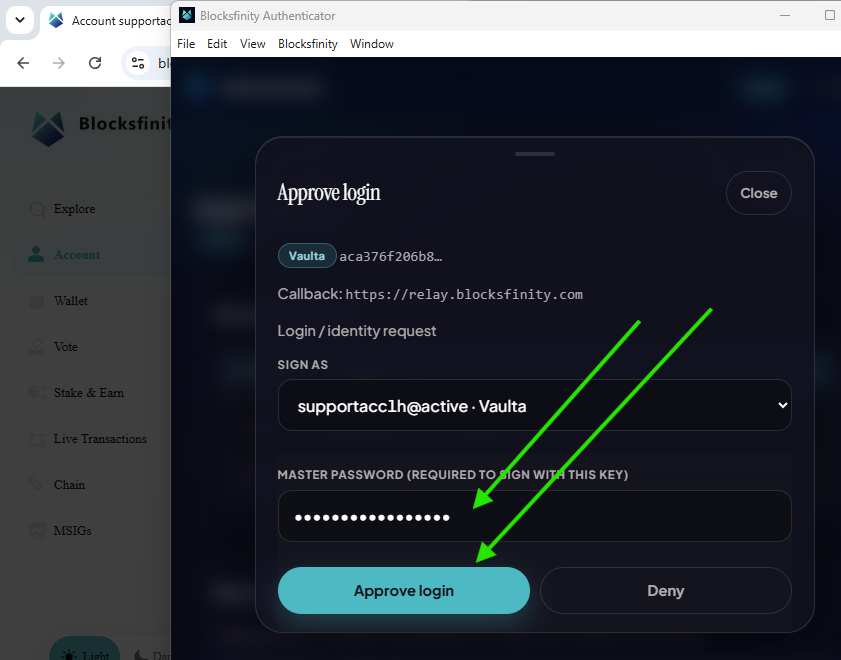
The Authenticator cryptographically signs the login request using the appropriate private key. Your private key itself is not sent to Blocksfinity.com.
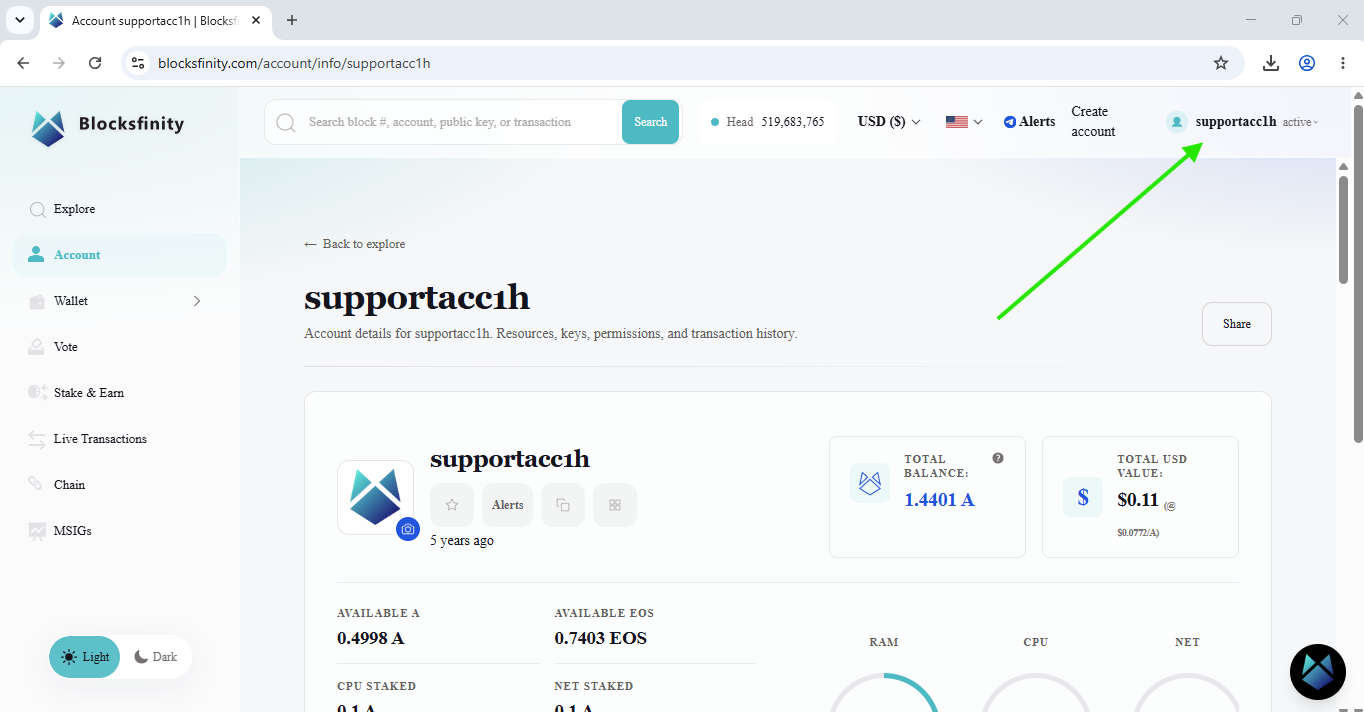
After approval, return to your browser. Your Vaulta account name should now appear in the upper-right corner, confirming that you are logged in.
Last updated:
Was this article helpful?
Have a specific question about this article?