Cómo crear una cuenta de la blockchain Vaulta al instante por $0.99
Guía paso a paso para crear tu cuenta Vaulta a través de Blocksfinity sin esperar la verificación de identidad
Blocksfinity ofrece dos opciones para crear una cuenta: una ruta gratuita que requiere verificación de identidad primero, y una opción de creación instantánea por $0.99. Esta guía recorre paso a paso la opción de pago.
Paso 1 — Elegir “Crear al instante”
Ve a la página Create your Vaulta account de Blocksfinity: blocksfinity.com/getstarted.
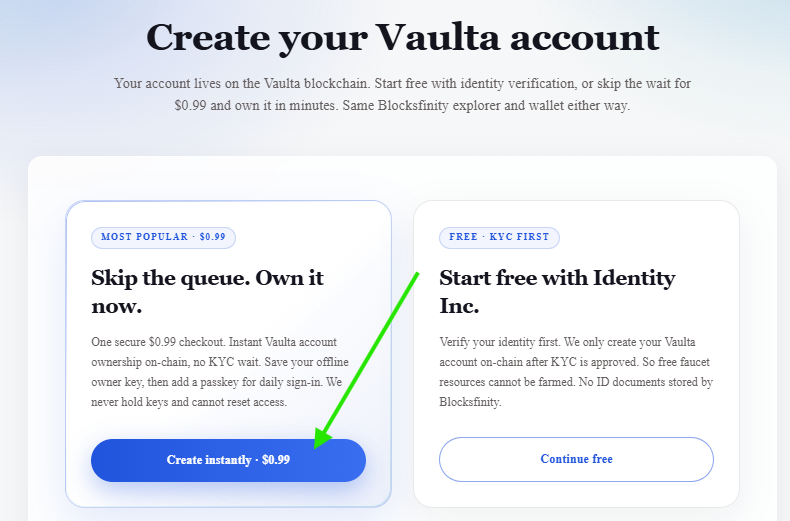
En la pantalla de creación de cuenta, selecciona “Skip the queue. Own it now.” y haz clic en el botón azul “Create instantly · $0.99”.
Paso 2 — Revisar la información de recuperación
Antes de continuar, Blocksfinity muestra un aviso importante sobre tu frase de recuperación y clave privada. Estas credenciales se utilizan para recuperar el acceso a tu cuenta Vaulta.
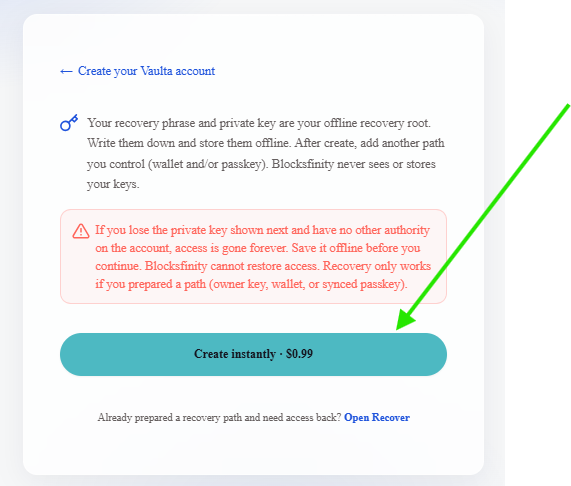
El proceso de recuperación se cubrirá en detalle más adelante en esta guía. En los siguientes pasos, crearás y guardarás de forma segura tu clave privada.
Esta pantalla se muestra al inicio porque estas credenciales de recuperación son la parte más importante para asegurar tu cuenta Vaulta.
Por ahora, lee el aviso cuidadosamente y haz clic en “Create instantly · $0.99” para continuar.
Paso 3 — Guardar tu clave privada de forma segura
Blocksfinity ahora genera la clave privada y la clave pública para tu nueva cuenta Vaulta.
Tu clave privada es la credencial secreta que controla el acceso a la cuenta. En términos simples, aplicaciones como el Blocksfinity Authenticator usan esta clave para crear una firma criptográfica cuando apruebas una transacción o acción de cuenta. La blockchain Vaulta verifica esa firma contra la clave pública correspondiente.
Cualquiera que obtenga tu clave privada podría autorizar acciones (por ejemplo, transferir tu dinero) usando el permiso asociado a esa clave. Nunca la compartas, la envíes por email o chat, ni la almacenes en un lugar al que otros puedan acceder.
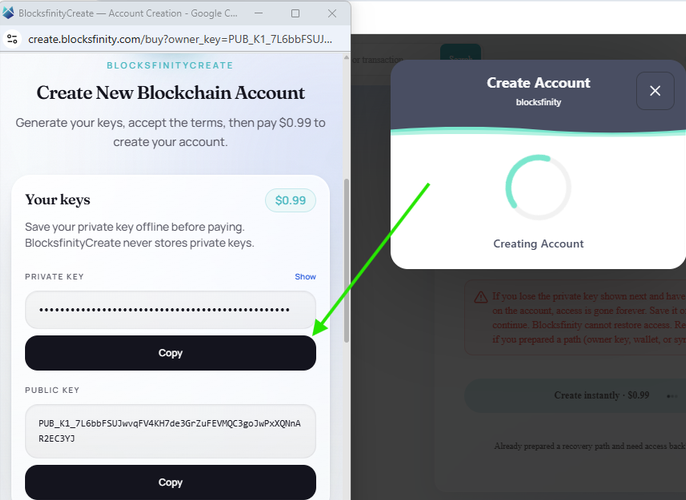
Haz clic en “Copy” bajo Private Key y guarda la clave en un lugar seguro antes de continuar. Más adelante en esta guía, te mostraremos cómo importar esta clave privada al Blocksfinity Authenticator para que puedas usar tu cuenta y aprobar transacciones.
Para una protección a largo plazo, mantén al menos una copia de seguridad segura de la clave privada offline y alejada de dispositivos conectados a internet. Por ejemplo, puedes almacenarla en una bóveda de contraseñas/cripto encriptada en una unidad cifrada. Considera mantener una segunda copia de seguridad encriptada en otro dispositivo físico o en otra ubicación segura en caso de que la primera unidad falle o se pierda.
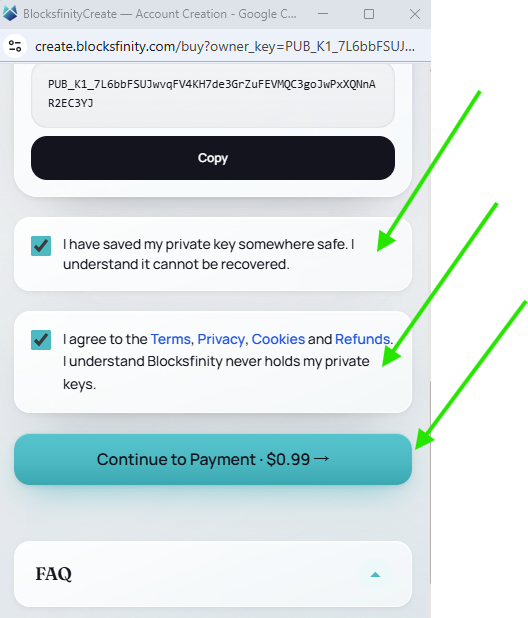
Una vez que hayas guardado y respaldado tu clave privada de forma segura:
Marca “I have saved my private key somewhere safe. I understand it cannot be recovered.”
Lee las políticas de Terms, Privacy, Cookies and Refunds y marca la segunda casilla si estás de acuerdo.
Haz clic en “Continue to Payment · $0.99”.
Importante: No continúes hasta que hayas confirmado que tu clave privada se guardó correctamente. Perder la única copia podría resultar en la pérdida de acceso a la cuenta.
Paso 4 — Elegir cómo deseas pagar
En la página de pago, desplázate hacia abajo hasta la sección “Buy an account” y elige tu método de pago preferido.
Puedes pagar usando una tarjeta de crédito/débito, Apple Pay, Cash App Pay, Link, Amazon Pay o PayPal, según lo que esté disponible en tu dispositivo y navegador.
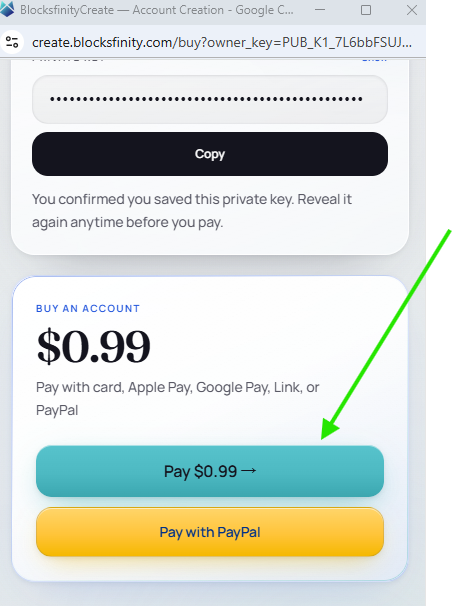
En este ejemplo, pagaremos con tarjeta de crédito. Haz clic en “Pay $0.99” para continuar al formulario de pago con tarjeta (también para pagar con Apple Pay, Cash App Pay, Link o Amazon Pay).
Paso 5 — Introducir tus datos de pago
Ahora serás redirigido al checkout seguro de pago.
Primero, confirma la moneda que deseas usar. Dependiendo de tu ubicación, el checkout puede ofrecer pago en tu moneda local o en USD ($0.99).
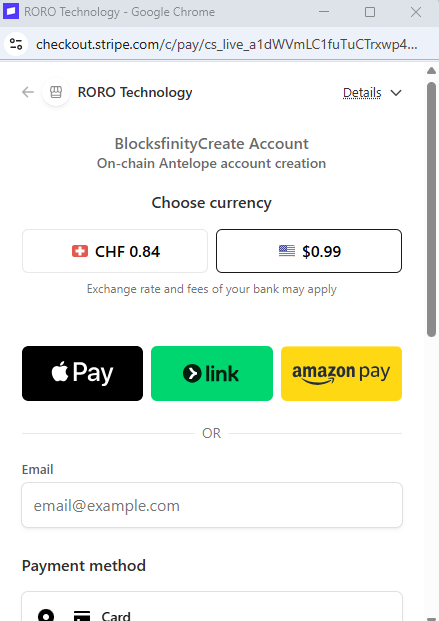
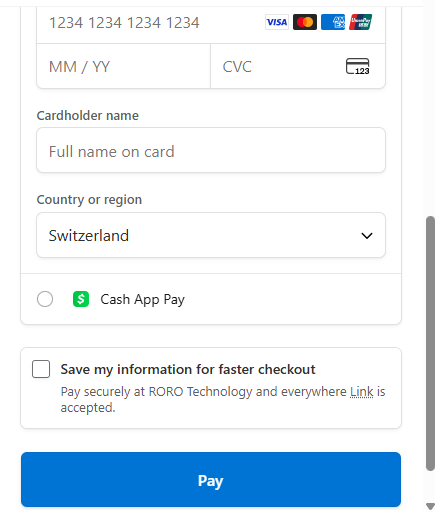
Dado que en este ejemplo pagamos con tarjeta de crédito:
Introduce tu dirección de email.
Introduce tu número de tarjeta, fecha de expiración, CVC y nombre del titular.
Confirma tu país o región.
Revisa los detalles del pago.
Haz clic en “Pay” para completar el pago de $0.99.
Otras opciones de pago, como Apple Pay, Cash App Pay, Link o Amazon Pay, también pueden aparecer según tu navegador, dispositivo y región.
Paso 6 — Elegir y comprobar el nombre de tu cuenta Vaulta
Una vez completado el pago, se te pedirá elegir un nombre para tu nueva cuenta de la blockchain Vaulta.
Nota: Si el proceso se agota o tarda demasiado, también deberías recibir un email después del pago, con un enlace que te permite reanudar y completar el proceso de creación de cuenta:
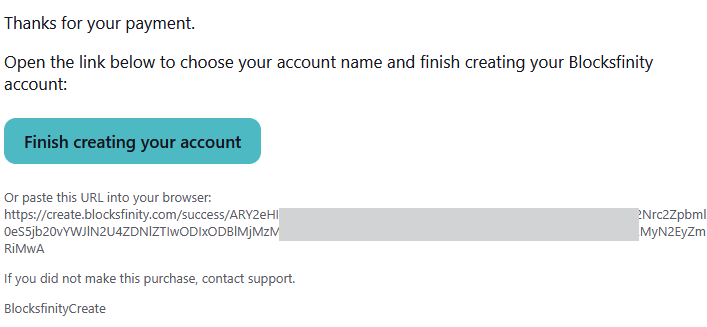
Si tienes cualquier problema, también puedes contactar directamente vía email a contact@rorotechnology.io.
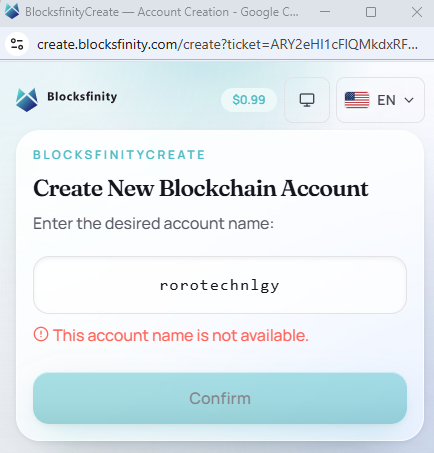
Para cuentas creadas a través de este flujo pago de Blocksfinity, el nombre de la cuenta debe tener exactamente 12 caracteres y puede usar letras minúsculas a–z y dígitos 1–5. Los nombres de cuenta son únicos y permanentes en cadena.
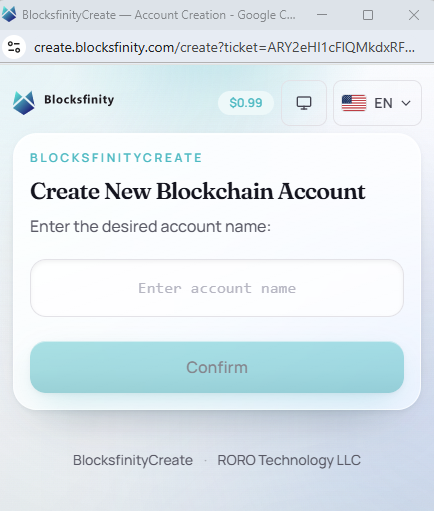
Si el nombre de cuenta ya está tomado, se mostrará un error. En ese caso, elige otro nombre.
La búsqueda de nombre de cuenta también puede hacerse antes de iniciar el flujo de creación, a través de la página de búsqueda de Blocksfinity:
Abre Blocksfinity.com en una nueva pestaña del navegador.
Introduce el nombre de cuenta deseado en el campo de búsqueda.
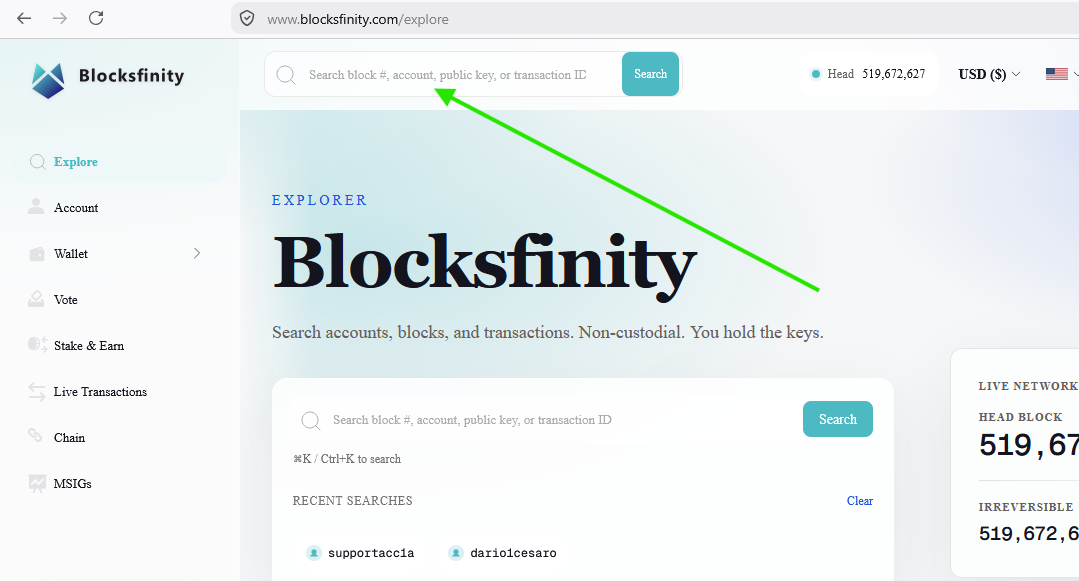
En nuestro ejemplo queremos crear “rorodigitals”. Introduce el nombre y haz clic en “Search.”

Si Blocksfinity devuelve “Nothing found,” el nombre de cuenta no se encuentra actualmente en la blockchain y puedes proceder con él.
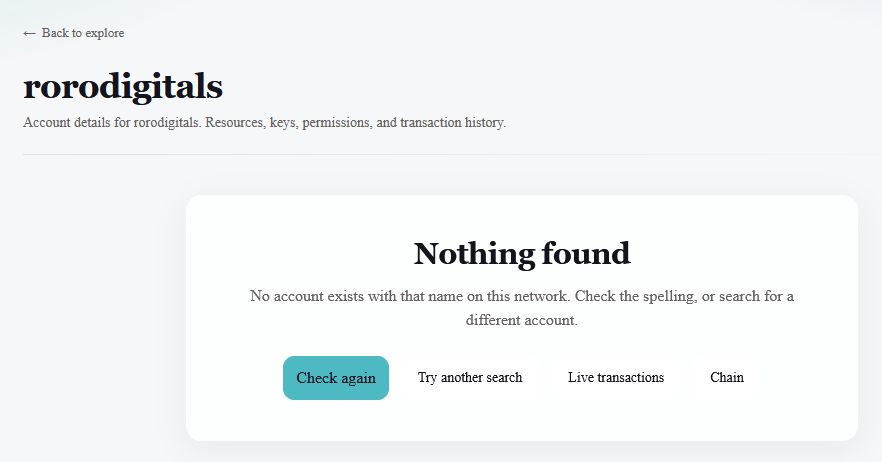
En nuestro ejemplo, queremos crear la cuenta:
rorodigitals
Importante: Elige el nombre con cuidado. Una vez que la cuenta se haya creado en la blockchain Vaulta, su nombre de cuenta no podrá simplemente renombrarse.
De regreso a la página de creación de cuenta, introduce el nombre de cuenta y haz clic en “Confirm.”
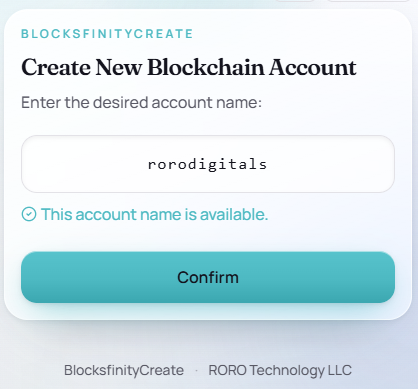
Paso 7 — Confirmar que tu cuenta Vaulta fue creada
Después de confirmar el nombre de cuenta, Blocksfinity debería mostrar un mensaje de éxito indicando que tu nueva cuenta de la blockchain Vaulta ha sido creada.
Puedes verificar la cuenta directamente en el Blocksfinity Explorer:
Ve a Blocksfinity.com.
Introduce tu nuevo nombre de cuenta en el campo de búsqueda.
Haz clic en “Search.”
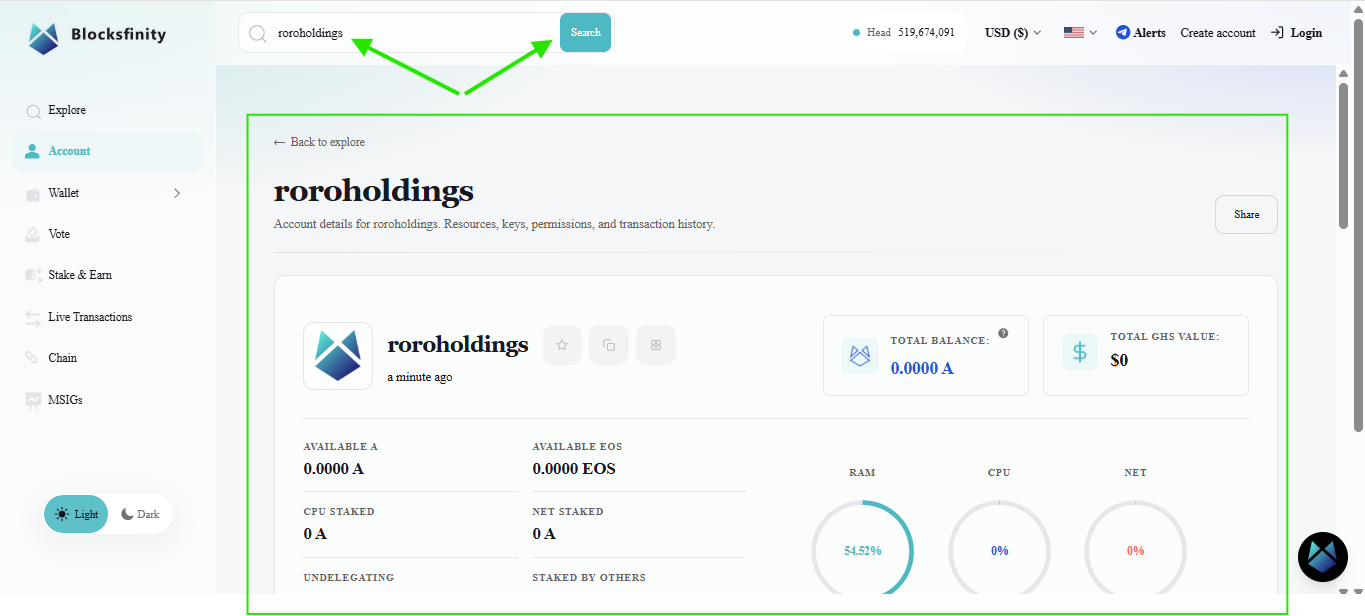
El Explorer mostrará la información on-chain de la cuenta, incluidos sus balances, recursos, claves, permisos e historial de transacciones.
En nuestro ejemplo, la cuenta recién creada es:
roroholdings
y puede verse en:
https://www.blocksfinity.com/account/info/roroholdings
Ver la cuenta en el Explorer confirma que la cuenta ahora existe en la blockchain Vaulta.
Continuar con la guía paso a paso: How to Import Your Private Key into the Blocksfinity Authenticator App.
Última actualización:
¿Te resultó útil este artículo?
¿Tienes una pregunta específica sobre este artículo?